Compress image
A smaller file. Ready to upload.
Drop an image here
Choose a JPG, PNG or WebP image.
Compression is lossy. Check small text and fine detail before using the result.
Your image stays on your device.
More images or another format
Process 1–10 images, one at a time. Up to 20 MB per image and 100 MB total. Files stay on this device.
Nothing is uploaded or saved by the app. Results remain in memory until cleared or the page closes.
Less weight. Same job.
Choose a photo or scan, set the file-size limit of your form, then download the result. The original is never changed.
Does my image get uploaded?
Images are processed in this browser, without image uploads, ads or analytics. Your language choice is stored locally. Public site files are saved only if you enable offline use; selected images and results are not saved.
What should I know?
One JPG, PNG or WebP. Choose JPG or supported WebP for a KB target; PNG optimization accepts PNG only, preserves pixels and has no KB target. PNG: up to 8 MP, 16,384 pixels per side and 64 MB decoded scanlines. Batch: 1–10 files, 20 MB each, 100 MB total. A verified basic HEIC opens in Safari, which decodes it natively; Chrome and Firefox cannot open HEIC. HDR, animation, unusual orientation and unsupported colour profiles are refused. Optional batch does not accept HEIC. GIF and SVG are unsupported.
What happened when we compressed 25 photos
We ran every photo through the JPG mode at each target below, once with Allow shrinking ticked and once without. The tool returns a file either way; "reached" counts files at or under the target.
JPG mode, 25 photos
| Target | Reached: shrinking on / off | Median result | Pixels kept | Similarity |
|---|---|---|---|---|
| 20 KB | 25/25 · 0/25 | 19.9 KB | 4% | 0.927 |
| 50 KB | 25/25 · 0/25 | 49.5 KB | 13% | 0.939 |
| 100 KB | 25/25 · 4/25 | 99.2 KB | 30% | 0.948 |
| 200 KB | 25/25 · 10/25 | 198.1 KB | 63% | 0.956 |
| 500 KB | 25/25 · 19/25 | 494.3 KB | 100% | 0.971 |
| 1 MB | 25/25 · 25/25 | 972.0 KB | 100% | 0.985 |
| 2 MB | 25/25 · 25/25 | 1.09 MB | 100% | 0.991 |
The last three columns are for shrinking on. Pixels kept is the result's pixel count as a share of the original's. Similarity compares the result with the original scaled to the same size.
Source: our test on 2026-11-10 (harness eacd79c, site code eacd79c), headless Chromium 145 on a desktop Mac, 25 CC0 photos and 14 images we made. Similarity is our own 8×8-block luma score (SSIM): 1.000 means no visible change, lower means more change. How we test
Three lossy modes at 100 KB, shrinking on
| Mode | Reached | Pixels kept | Median time |
|---|---|---|---|
| JPG | 25/25 | 30% | 285 ms |
| WebP | 25/25 | 53% | 3.5 s |
| MozJPEG | 25/25 | 45% | 4.4 s |
More pixels kept means more detail in the same number of bytes.
Source: our test on 2026-11-10 (harness eacd79c, site code eacd79c), headless Chromium 145 on a desktop Mac, 25 CC0 photos and 14 images we made. Times are from that desktop machine; phones are slower. How we test
Lossless PNG modes on 10 screenshots and graphics
| Mode | Median saving | Range | Same pixels |
|---|---|---|---|
| PNG (pixels preserved) | 0.3% | 0.3% to 4.3% | 10/10 |
| OxiPNG | 19.5% | 0.3% to 36.8% | 10/10 |
Source: our test on 2026-11-10 (harness eacd79c, site code eacd79c), headless Chromium 145 on a desktop Mac, 25 CC0 photos and 14 images we made. How we test
How the compressor finds a size
- The page reads the first bytes of the file to confirm it is a JPG, PNG or WebP, then lets the browser decode it with the camera's rotation applied. Animated PNG and WebP files are refused.
- In JPG mode the work runs in a Web Worker, a background thread of this tab, so the page stays usable. The picture is drawn on a white canvas, which is why transparent areas turn white.
- It saves the canvas as JPG at quality 0.92, 0.82, 0.72, 0.60, 0.48 and 0.36, in that order, and stops at the first try that fits. If the very first try fits, that file is what you get.
- When a lower step fits, it tries 5 more qualities between that step and the one above it and keeps the highest one that still fits.
- If even 0.36 is too big and Allow shrinking is ticked, both sides shrink by a factor between 0.65 and 0.85, chosen from how far the last try missed, and the search starts again. It stops after 9 rounds or when the long side is down to 320 px. With shrinking off there is one round, and you get the smallest try, marked as missed.
- WebP follows the same steps with the browser's WebP encoder. MozJPEG downloads a WebAssembly encoder from this site when you pick it and runs it in its own Worker. The two PNG modes rewrite the file without changing a pixel and ignore the target.
- Your image is never uploaded. The result stays in this tab's memory until you download it, clear it or leave.
Compressor limits
| Limit | Value |
|---|---|
| File size | 20 MB per image |
| Image size | 25 megapixels and 16,384 px per side |
| Formats in | JPG, PNG, WebP. Not GIF, SVG or animations. |
| Target | Whole KB from 10 to 20,000; 1,000 bytes per KB |
| Quality steps | 0.92 down to 0.36 in 6 steps, then up to 5 steps between |
| Shrinking | Up to 9 rounds in JPG and WebP, 4 in MozJPEG; long side not below 320 px; result at most 24 megapixels |
| MozJPEG | 8 megapixels and 8,192 px per side; bigger photos need Allow shrinking |
| PNG modes | PNG files only, up to 8 megapixels and 64 MB of decoded pixels; no target |
| WebP output | Up to 16,383 px per side, in browsers that can save WebP |
| Batch panel | 1 to 10 files, 100 MB in total |
| HEIC (iPhone photos) | Opens in Safari, not in Chrome or Firefox. Why, and what to do |
| Location and camera data | Not copied: 0 of 1,469 files this tool made in our test had EXIF data. |
When compression goes wrong
Why can't I reach 20 KB with Allow shrinking off?
Because quality stops at 0.36. With shrinking off, 0 of our 25 photos reached 20 KB and 0 reached 50 KB; the smallest files had a median size of 268.4 KB. With shrinking on, 25 of 25 did, keeping a median 4% of the pixels. If the form fixes the pixel size, resize to it first, then compress with shrinking off. Answers on Q&A sites give the same tip: work back from the pixel size the form needs (user reports, for example this Quora thread).
Why is the compressed file bigger than my original?
The search compares its result with your target, not with your file. In our test 197 of 1,469 finished runs came out bigger than the original, and in 179 of those the first try at 0.92 already fitted the target. It happened most with small PNG graphics and screenshots saved as JPG (in 34 of 70 graphic runs and 30 of 70 screenshot runs), and less often with photos (20 of 350 runs; 4 of the 5 photos involved were night shots). The page then shows a note instead of a saving. If your original already fits, keep it; if not, set a target below its size.
Which mode keeps the most detail?
At 100 KB, WebP kept a median 53% of the pixels and MozJPEG 45%, against 30% for JPG, so they needed to shrink the photo less. They took a median 3.5 s and 4.4 s per photo on our desktop machine, against 285 ms for JPG; phones are slower. Pick WebP only if the site you upload to accepts it.
Why does MozJPEG refuse my photo?
MozJPEG here works up to 8 megapixels and 8,192 px per side. Above that it needs Allow shrinking, which first scales the photo down to fit. With shrinking off, 9 of our 25 photos were refused at every target.
Will a PNG mode make my screenshot much smaller?
Usually not. On our 10 PNG files the built-in PNG mode saved a median 0.3%. OxiPNG saved a median 19.5%, from 0.3% to 36.8%. In both modes the pixels stayed exactly the same (10 of 10 files with PNG, 10 of 10 with OxiPNG). Neither can aim for a KB target; for that, choose JPG or WebP.
How to choose settings and check your result
Set a file-size limit, not a promise of perfect quality
- Choose a JPG, PNG or WebP image.
- One JPG, PNG or WebP. Choose JPG or supported WebP for a KB target; PNG optimization accepts PNG only, preserves pixels and has no KB target. PNG: up to 8 MP, 16,384 pixels per side and 64 MB decoded scanlines. Batch: 1–10 files, 20 MB each, 100 MB total. A verified basic HEIC opens in Safari, which decodes it natively; Chrome and Firefox cannot open HEIC. HDR, animation, unusual orientation and unsupported colour profiles are refused. Optional batch does not accept HEIC. GIF and SVG are unsupported.
- 10–20,000 KB. 1 KB = 1,000 bytes.
- JPG: target KB, with a white background for transparency. Lossy encoding.
- WebP: target KB with transparency. Requires a browser with WebP encoding.
- PNG: pixel-lossless optimisation for PNG files only. Keeps pixels, transparency and colour information; removes text and time metadata, and strips only a recognised safe ImageIO EXIF structure. Other EXIF is rejected to avoid changing display. Up to 8 megapixels, 16,384 pixels per side and 64 MB decoded pixel data. No resizing or target-KB guarantee.
What this compressor does
- JPG: target KB, with a white background for transparency. Lossy encoding.
- WebP: target KB with transparency. Requires a browser with WebP encoding.
- PNG: pixel-lossless optimisation for PNG files only. Keeps pixels, transparency and colour information; removes text and time metadata, and strips only a recognised safe ImageIO EXIF structure. Other EXIF is rejected to avoid changing display. Up to 8 megapixels, 16,384 pixels per side and 64 MB decoded pixel data. No resizing or target-KB guarantee.
- The target is an upper limit, not an exact output size. If it cannot be reached within the search limits, the result is labelled accordingly.
- Your original file is not changed. Smaller dimensions and lower JPEG quality can remove detail. Check scans and small text before use.
JPG and WebP results are newly encoded without source metadata. PNG optimisation keeps colour and display chunks, including ICC profile, gamma and pixel density, and removes text, time and the recognised safe EXIF block. This does not guarantee that every metadata field is removed.
KB, KiB and pixels: what is the difference?
Here, 1 KB is 1,000 bytes. A 200 KB target is 200,000 bytes; 200 KiB is 204,800 bytes. Pixels describe width and height, not file size. Check both requirements on the form receiving your image.
Why can two targets give the same result?
The compressor tries fixed quality levels, then up to five in-between steps when a lower level fits. At the chosen dimensions, it keeps the highest quality setting it measured within the limit. Different targets can still give the same result. It does not pad files to match a target.
When should I keep the original?
Keep it when the result is larger, small text becomes unreadable, or the selected JPG result removes transparency that the destination needs. This tool does not guarantee acceptance by another website.
Measured example
A detailed illustration we created, converted from PNG to lossy JPG. Download the same source and the three results to compare fine detail at full size. These are measurements from the listed browser, not predicted results for your files. Other browsers may encode differently.
Source PNG: 2,876.142 KB (2,876,142 bytes) · 2400 × 1600 px
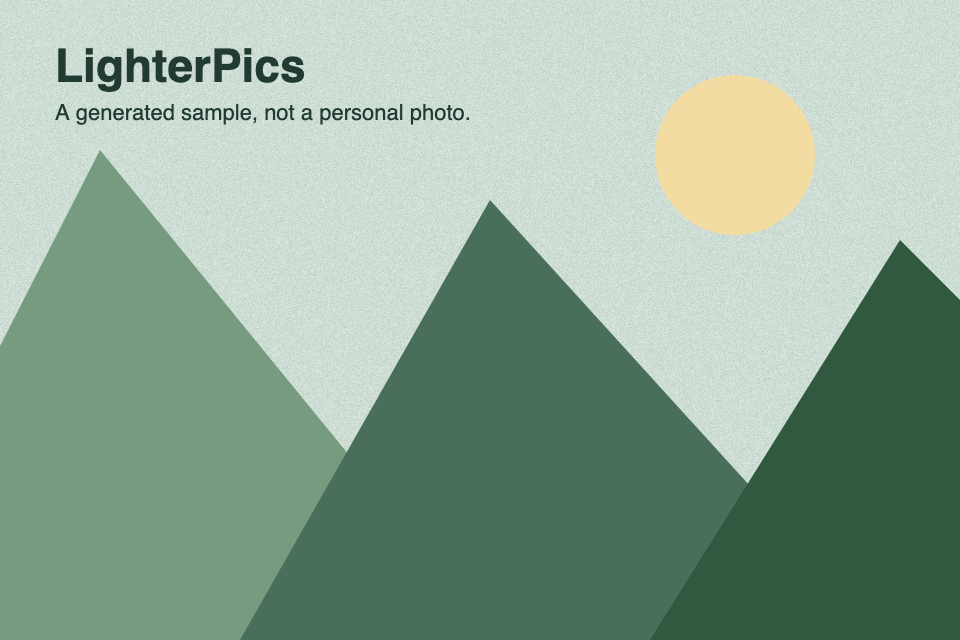
Target: 100 KB
Result JPG
97.684 KB (97,684 bytes)
Pixels: 1622 × 1081
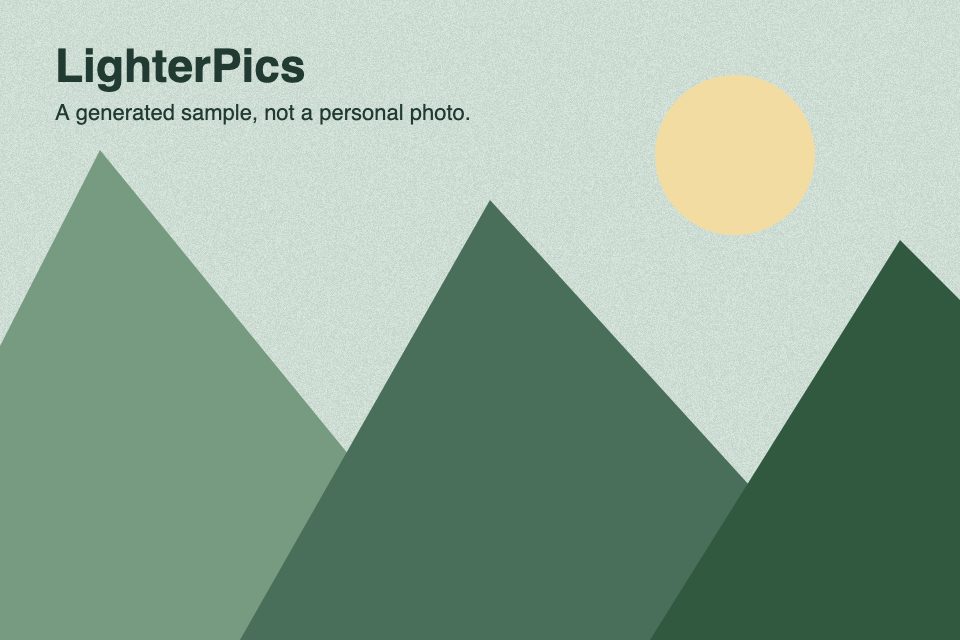
Target: 200 KB
Result JPG
197.876 KB (197,876 bytes)
Pixels: 2400 × 1600
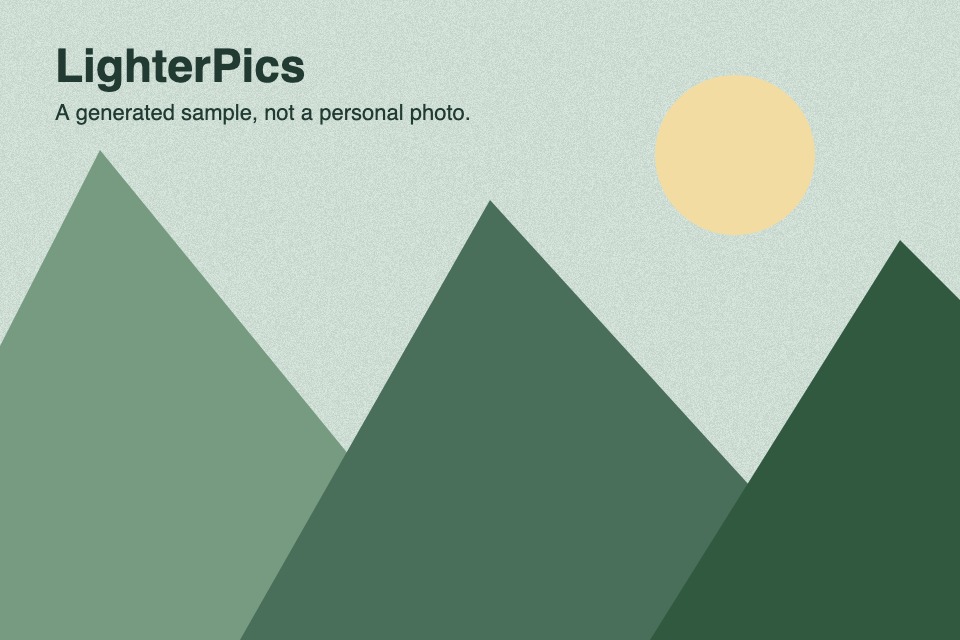
Target: 500 KB
Result JPG
478.938 KB (478,938 bytes)
Pixels: 2400 × 1600
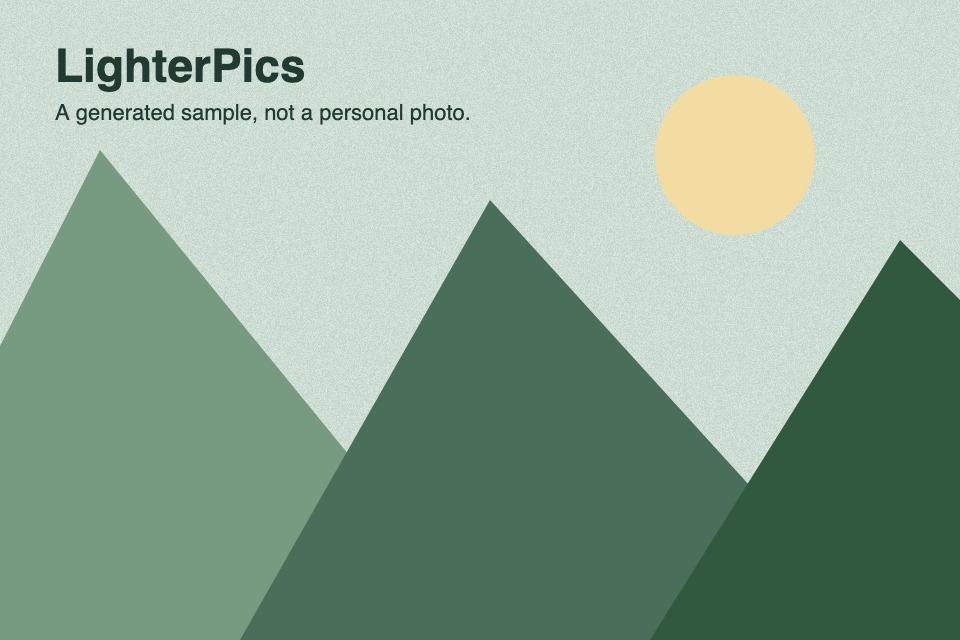
Measured: · Chromium 145.0.7632.6
Meet a file-size limit without guessing
Pixel dimensions describe the shape and detail of an image. KB and MB describe its encoded file size. Changing one does not guarantee a particular value for the other.
When a form limits both pixels and KB
- Check the destination rules first: accepted format, width and height, maximum file size and whether editing is allowed. These rules are set by the destination, not by LighterPics.
- Crop only if the required shape differs. Then resize to the requested pixel dimensions. Enlarging a small picture does not recover missing detail.
- Compress the resized file last. Use the required KB limit and turn off automatic resizing when exact dimensions must stay fixed. If the target is missed, do not upload an oversized result as if it passed.
- Check the downloaded file, especially fine text, faces and edges. Confirm its actual dimensions and byte size before submitting it.
A worked requirement
Suppose a form asks for a JPG of exactly 1200 × 800 pixels and at most 200 KB. Crop to 3:2 if necessary, resize to 1200 × 800, then compress to 200 KB with automatic resizing off. This is an example, not a passport or government specification. LighterPics uses decimal KB: 200 KB means 200,000 bytes. A destination may use a different convention.
Several images, one careful queue
The additional panel processes up to 10 images sequentially. Its target applies to each JPG or WebP, not to the whole ZIP. Check every result: one invalid file does not invalidate the others. ZIP packages successful outputs without another image recompression. Keep your originals and compare the downloaded files.
Compress an image to a specific KB size
Upload limits are almost always written as a maximum file size, not as a quality setting. Instead of guessing a quality slider, type the limit itself as the target. The compressor then keeps the highest quality it can measure at or below that size. These are the limits that appear most often, and what to expect from each.
Compress to 200 KB
The most common cap on application forms, school and government portals, and job sites. For a typical phone photo it needs no drama: set the target to 200, leave automatic resizing on, and the result usually keeps its full dimensions. If the form also fixes exact pixels, resize first and compress last with automatic resizing off.
Compress to 100 KB
Stricter portals and profile-photo uploads often stop at 100 KB. A detailed photo may give up some fine texture at this size. If text has to stay readable, compare the download at 100% before you submit it.
Compress to 50 KB
Legacy systems and some exam or ID portals still cap uploads at 50 KB. Expect visible softening on a large photo: first resize the pixel dimensions to what the form actually needs, then compress. A smaller canvas reaches 50 KB with far less damage than squeezing the full-size image.
Compress to 500 KB
A practical ceiling for email attachments and marketplace listings, where the photo should still look good on a large screen. Set 500 as the target and check any small print in the image — this size normally preserves it well.
Compress to 1 MB (1,000 KB)
Useful for scanned documents and certificates that must stay legible but exceed an upload limit of 1 MB. Enter 1000 as the target. Because the output is a lossy JPG, read every page of the result once before sending it.
How to hit the target
- Select one JPG or PNG. For several files, the batch panel applies the same target to each image.
- Type the limit in the target field — any whole number from 10 to 20,000 KB, or use the 100, 200 and 500 presets.
- Leave automatic resizing on for strict limits. Turn it off when the destination fixes exact pixel dimensions and you have already resized.
- Compress and read the result label. The target is an upper bound, not padding to an exact size; a result that cannot reach the target is labelled instead of silently passed.
- Download and confirm the real byte size and appearance before you upload it anywhere.
Can I compress a PNG to 200 KB and keep its transparency?
The single-image compressor exports JPG, which has no transparency, so transparent areas become white. If transparency matters more than an exact KB figure, use the PNG mode in the batch panel: it optimises the PNG losslessly and keeps transparency, but it cannot promise a specific KB result.
Why does a 50 KB result look soft?
At very low targets the encoder must trade detail for bytes. It first lowers JPEG quality and, if resizing is allowed, the dimensions. You can protect detail by starting from a closer crop or fewer pixels, so the 50 KB budget is spent on the part of the image that matters.
The form says 200 KB but rejects my 200 KB file. Why?
Conventions differ: this site counts 1 KB as 1,000 bytes, while some systems mean 1,024 bytes (KiB) or require the file to be strictly below the limit. Aim slightly lower, for example 195 KB, and check the downloaded file's actual byte count.
Not sure whether to crop, resize or compress first? Read the image size guide
Compress to a specific size
If your form names an exact ceiling, open the matching page — the target is already set, and the page explains what that limit is usually for and what quality to expect.
Compress image to 20 KB · Compress image to 50 KB · Compress image to 100 KB · Compress image to 200 KB · Resize first or compress? · Photo upload rejected?
Compress for a format or a destination
When the requirement names a format or a service rather than a KB number, start from the matching page — the preset and the explanation fit the job:
Compress PNG · Compress image for Discord · Compress image for email · Remove location from photos
Compress for an exam-portal upload
When the form names an exam portal and a KB range, start from the matching page — the preset and the explanation fit that upload:
Compress image for SSC signature · Exam photo and signature guide